Everywhere now is involved with the atmosphere of New Year. It tells us that New Year of 2011 is around the corner. How is your 2010? And what kind of year would you expect in coming 2011? At the end of 2010, we may spare sometime to review our past 2010, and make wishes and plan our new life in the coming 2011.
Summarize Your 2010
We have joy but also tears in 2010. Photos are something good to record our life. It shows vividly what events you have gone through in the past days. We may organize our thoughts and summarize our life based on the photos. Slide show tools are helpful for making your photo albums and share them online. And some people love to make summarization report with PowerPoint program. If you are good at making presentions with PowerPoint, it can be definitely a great tool to create compelling summarization report with pictures and send it to your friends. It is a time of sharing. We are not going to hide ourselves even on the Internet. To let more people know where have you been, what have you done, what how is your life going, you may convert your reports of photo albums or summarization reports to videos and upload them to video sharing sites like YouTube. Samuel is an enthusiast who loves travelling, and he is willing to sharing his stories to people around the world. After making a slide show with pictures and some text, he converted the PowerPoint slide show to video with PowerPoint to video converter. So everyone can enjoy his wonderful story online.
Make Wishes for 2011
Tomorrow is another day. And we love to hug the New Year with sweet wishes with bright smiles. So what are your New Year wishes? Do you have some ambitious goals that your have been trying to achieve?Do you want to blaze some trail and do something challenging? We may write down our wishes and plan our new life in the next year. Now more and more people don’t want to hide their wishes and dreams; they show their wishes to friends and motivate themselves to make the progress in future. So, why not make your wishes visually? Making wishes but also a general plan on some visible media can reminds you to act and make your wishes come true. So, just type your wishes on your presentation file and convert it to video and share it online or distribute it on your portable devices.So, are you ready for 2011? You may start your new year in a good beginning. well begun is half done. Best wishes for you and happy New Year!
Resource Resources: Create a Photo Album with PowerPoint and Distribute
ppt to avi PowerPoint to WMV PowerPoint to movie presentation to video
Jan 4, 2011
Tips to Make Wishes for 2011


Dec 20, 2010
Make Good Use of PowerPoint to DVD Converter and Promote Your Business in this Christmas Season
The happy Christmas is coming soon! For business men, it is a great promotion time, as almost all the people will definitely spend a lot of money on Christmas goods although the economic is still not that good this year. The opportunity is here, but how to catch it and get more profits in this Christmas season? If your are creative enough, there will be many good ideas. And there are some helps that can be done by PowerPoint to DVD tools.
Design video ads to promote your products
Having some professional design companies create ads can be expensive. In fact, like what I said before, if you are creative enough, you may create your own ads by yourself! Some simple tools like Microsoft PowerPoint program is just what you need, and it is a common tool that most of us can operate it quite well. You can add pictures, animation, transition, Smartart (if you are using PowerPoint 2007 or PowerPoint 2010) audio files and even video clips, that will make your design look good. The problem is that PowerPoint files can not be played in many situations, such as TV and digital signage. However, PowerPoint to DVD converter is specially developed to solve this program. Import your created PowerPoint files to this powerful converter, and you will get you video ads in minutes. It will convert your files to videos or DVD movies retaining almost all features of the slide shows.
Burn instructional DVDs for you products
If you are selling products which are not that easy to use, you may need visuals that will show the clients how your product works. You may burn the video as DVDs and distribute them to the clients. The video can be shot with a digital video recorder, or it can be generated from the PowerPoint files with a PowerPoint to DVD converter! As we are concerned, installing a Christmas tree is not an easy job. Mr. Smith, who runs a store selling Christmas tree locks (locks to tye trees on roof rack cars and non-roof rack cars), he makes some DVD copies showing the detailed steps with pictures and illustration in PowerPoint program, then burn the PowerPoint file to DVD with PowerPoint to DVD converter, and distributes them to the clients. That makes him outstanding among the competitors.
Make DVD brochures for your product
This way is quite similar to the first point, but it only shows the basic information of some products, discounts and pricing. We may find DVD brochures are widely use in exhibitions, and they can also be used to boost your sales. You may show your product with a compelling brochure. You can reach potential clients by handing out a brochure listing the advantages of your product. They say a picture's worth a thousand words. So what does a DVD brochure worth?
Make good use of PowerPoint to DVD Converter and Promote Your Business in this Christmas holiday. Maximize your imagination and make it a profitable season!
Other related converters:
PowerPoint to AVI Converter - Play PowerPoint on YouTube, Pocket PC and Blackberry
PowerPoint to WMV Converter- Play PowerPoint on YouTube, Pocket PC, Blackberry and Zune
Sep 6, 2010
Video about How to Convert PowerPoint to AVI
This video can tell you how to convert PowerPoint to AVI with a PowerPoint to video converter such as Wondershare PPT2Video Pro.
--------------------------------------------------------------------------------------------
PowerPoint to Movie – Total Guide to you
PPS to MPEG – How to View PPS files on Your Portable Device
Aug 25, 2010
Make a Unique Wedding DVD Slideshow Invitation
Next month, Sandy’s wedding will be held in Sheng An church. She was immersed in a great sense of satisfaction and enjoyment. However wedding invitation bothered her these days. Sandy hope I can give her a unique and personalized idea about wedding invitation. She wants this invitation can share her memorable memories and happy time with others. An idea flash into my mind, wedding DVD slideshow invitation can satisfy her.
DVD wedding slideshow invitations can seamlessly combine the traditional written invitation with photos, music, personal messages and your love story into a DVD disc for making a unique and creative wedding invitation. Please follow me to make a personalized DVD wedding invitation to invite your friends for wedding ceremony.
Tools you need:PowerPoint and a PowerPoint to DVD converter can help you to make a personalized and meaningful wedding DVD slideshow invitation easily.
How to make a Wedding DVD Slideshow Invitation with PowerPoint and PowerPoint to DVD converter?
1. Wedding PowerPoint templates: Your friends will be delighted as they watch your beautiful wedding DVD slideshow. There are many free PowerPoint templates you can download from websites. You can choose a sweet background for your wedding DVD slideshow invitation. http://www.ppt-to-dvd.com/freetemplates/free-wedding-powerpoint-templates.html#240 http://www.acoolsoft.com/free-powerpoint-templates/wedding-powerpoint-templates.html#240 You just need open your PowerPoint and select the wedding PowerPoint template.
2. Wedding songs:Wedding songs are an important factor for wedding DVD slideshow invitation. They set the general mood and tone for your invitation or ceremony, while also allow you to express your feelings through music.
Here is a list of Top Ten Wedding invitation Songs:1. Nothing Compares To You. Sinead O’Connor 2. Close To You. Maxi Priest 3. Power of Love. Jennifer Rush 4. Love Me Tender. Elvis Presley 5. I Can’t Help Falling in Love with You. Elvis Presley 6. Just the Way You Are. Billy Joel 7. When You Say Nothing At All. Ronan Keating 8. From This Moment On. Shania Twain 9. You Made Me Love You. Al Jolson 10. How Deep Is Your Love. Bee Gees
For inserting a song to your slideshow, you just need to click the Insert Sound, then you can insert a selected song to the slideshow from your computer.
3. Wedding photos:Select photos from your album for wedding DVD slideshow invitation. You can share your love story with your friends from these photos such as wedding pictures. For inserting pictures you need to click Insert Pictures, then select pictures just prepared.
4. Add animations to Wedding slideshow:Add animations to your photos can spread happiness to your friends with wedding DVD slideshow invitation. Click Animations Custom Animation, then you can customize the animations to the objects in your wedding slideshow.
5. Burn wedding slideshow into DVD disc for distributing to your friendsThis is the last step to make a wedding DVD slideshow invitation. In this step, you can use a PowerPoint to DVD converter for burning your slideshow into a DVD disc. Then distribute this unique wedding DVD slideshow invitation for inviting your friends.
Use wedding DVD slideshow invitation for sharing your happy time with your friends.
>-------------------------------------------------------------------------------------------
Related articles:
PowerPoint to Movie – Total Guide to you
Convert PowerPoint 2007 to DVD with Online PowerPoint Converters

Oct 20, 2009
The First PowerPoint to DVD Burner that Receives Windows 7 Certification – Wondershare PPT2DVD 6.0
Oct 19th, 2009 - Wondershare Software Co., Ltd, an innovative provider of consumer software, today announced the release of its flagship product Wondershare PP2DVD V6.0, which is the first PowerPoint to DVD burner that has passed the Windows 7 certification process and received the official “compatible with Windows 7” logo from Microsoft Corp.
Wondershare PPT2DVD V6.0 enables users to burn PowerPoint to DVD for playback on TV through DVD players on Windows 7-based PCs with high compatibility and reliability.
“We are proud to receive the Windows 7 logo certification,” said David Chen, the Director of Marketing of Wondershare, “and excited to announce that the products PPT to Video and PPT2Flash also work perfectly under Windows 7.”
What’s New in Wondershare PPT2DVD 6.0:
- Brand-new application interface
- Simplify the operation process, and improve the ease to use and stability of this product
- Speed up the conversion process by 30% to 50% compared to the last version in average
- More delicate DVD menus added to meet different customer needs
Key Features of Wondershare PPT2DVD:
- Support converting PPSX, PPS, PPTX, PPT to DVD or video
- Create eye-catching DVD menus with delicate built-in DVD menu templates
- Stable conversion process to convert PowerPoint to DVD
- Retain all features in the original PowerPoint
More details about Wondershare PPT2DVD, please visit: http://www.ppt-to-dvd.com/ppt2dvd/overview.html
Pricing and Availability:
Wondershare PPT2DVD is a now available at $99.95 per single-user license. A free trial version is available for downloading at: http://www.ppt-to-dvd.com/download/download.php
About Wondershare Software Co., Ltd.
Established in 2003 and located in Shenzhen, adjacent to the international financial and trade center Hong Kong, Wondershare has extended its business worldwide, consistently dedicated to satisfy customers with diversified consumer software products and services.
Aug 25, 2009
How to Enhance Digital Photo for Photo Album Making
We may take many photos on Holidays and events, like Birthday, Wedding, and Reunion. With these beautiful or funny pictures, we would like to make a photo album with animation and music to bring more life to the pictures.
If you have PowerPoint, it is recommended in my old posts to make digital photo album.
Before we start to add photos to our photo album project, we may need to optimize or enhance the picture with some special effects.
We do not have professional photo editing tool Photoshop. What can we do?
Don’t worry. We can use some online free photo editor to do this.
The following two recommended websites would help you.
http://editor.pho.to/
http://www.freeonlinephotoeditor.com
We can use them to:
1> Rotate, Crop and Resize it.
2> Adjust its basic effects.
3> Enhance it by applying special or artistic effects.
4> Add frames, texts (or glitter texts) or even watermark.
Here below are three samples made by me.
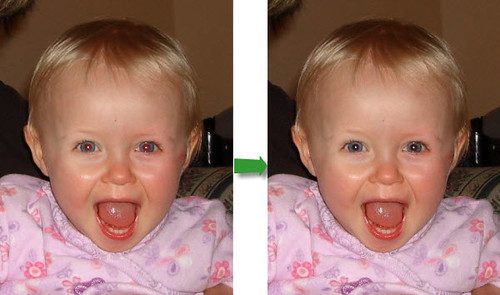
To remove the red-eye with one click
http://farm4.static.flickr.com/3330/3649407279_dbf6cb0571.jpg?v=0
To add frame
http://farm4.static.flickr.com/3642/3649407365_23959fa973.jpg?v=0
To apply artistic effect and add glitter text
http://farm3.static.flickr.com/2432/3649407443_dfccf8895b.jpg?v=0
Besides these kinds of online editor, you can also use some shareware to make photo collages for the photo album, digital scrapbook.
If you have Windows PC, you may try this Photo Collage.
If you have Mac, you may try this iCollage tool.
Article from:
http://videopptpower.wordpress.com/2009/06/22/how-to-enhance-digital-photo-for-photo-album-making/
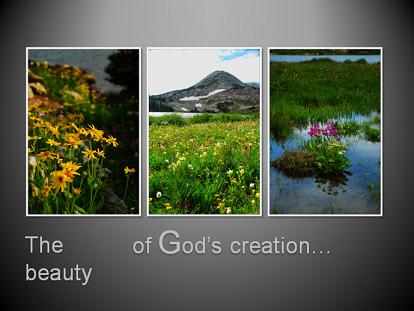
Enjoy it, share it.
Aug 10, 2009
Create a back-to-school Slideshow
As summer vacation goes to the end, the new semester begins. Kids should go back to school. Through the long holiday, they would miss each other very much. Thus, it would be a wonderful idea for teachers to hold a story-telling class. Teachers can ask students to collect their summer vacation stories and make into story slideshows by themselves, and then show the story with others. It is good for improving the relationship among students and also cultivating their various interests, broadening their view sights.
Besides, it is a fun way to integrate literacy and technology into the multimedia classroom. The following are the steps on how teachers to hold such an activity.
1. Ask students prepare the story slideshow
Step 1: Choose tool and prepare resources
A computer with Microsoft PowerPoint 2007 or any other early versions installed.
As a teacher, you can also provide your kids with some stunning PowerPoint templates. You can find some educational PowerPoint templates from the link below.
http://www.ppt2dvd.com/freetemplates/free-education-powerpoint-templates.html#149
Step 2: Create a story slideshow
Part I -Prepare Slides
Help each student to create an about 5 slides story PowerPoint slideshow with some interesting and special things happened during their summer vacation.
Part II – Import the photos and add descriptions
When students begin to import the photos to the presentation, you can help them to edit photo shapes in PowerPoint to make their photos look more beautiful and perfect. Please follow the simple steps below: Open PowerPoint 2007 -> Insert -> Images -> Choose photos. Then double click a photo, you can see the Picture Tools options in the tool bar. With it, you can get any picture style or shape you want because more than a hundred shapes are provided here. Comparing with other photo editing tools, I think PowerPoint editor is really convenient and easy-to-use. When you settle down the issue of photo edition, now you can help them to add some descriptions to their story slideshows.

2. Students share story slideshows one by one in story-telling class
When slideshows are completed, now it is the time for children to share their story slideshows in story-telling class. It is a good way to develop the skills of telling story for children to share story slideshow in the front of classmates. Here are some points you can remind children to pay more attention to while sharing story slideshows.
• Don't stare at the story slideshow all the time, just recite all the information from memory.
• Ask some questions to attract the attention of your classmates. When they give a correct answer to your question you presented, they can win a piece of candy or something else. It is a good way to ask them to interactive with you.
• Be self-confident while speaking. Don't talk monotonously like Ben Stein, have some flare.
• Put some comedic relief into your story slideshow to relieve a little bit of the boredom, maybe something tiny about half-way through the story slideshow.
3. Teachers integrate all story slideshows to one back-to-school slideshow
After the story-telling class, you can integrate all story slideshows to one back-to-school slideshow as a souvenir. Following are some advices for you to create a back-to-school slideshow.
•Prepare a wonderful introduction and ending for the back-to-school slideshow. In addition, you can add some good wishes or new semester goals for children.
•Choose an appropriate song for the back-to-school slideshow, click here to learn more how to add music file to back-to-school slideshow.
4. Enjoy the back-to-school slideshow together
Now you can enjoy the back-to-school slideshow with your students together through the Projector. Furthermore, if you want to distribute it to your kids and even to the ones who do not have computers, and also want to share it with your friends or put it online, you can convert slideshow to video with the help of Wondershare PPT to Video or Convert Slideshow to DVD to View Slideshow on TV with your family members.
If you are a teacher, you can get Wondershare software all PowerPoint conversion programs with 40% discount during their Back to School Offer. Please feel free to contact them.
Enjoy it and wish you have a good beginning of the new semester.
Jul 21, 2009
A Better Way to Host Summer Family Reunion - Enjoy Genealogy Slideshow

Summer vacation is the perfect time of one year for people to hold their annual family reunion. Therefore, summer family reunion is very popular.
Each year, we have experienced our reunion with all kinds of activities such as planting a tree, organizing a family softball /volleyball game, enjoying the sunshine at a beach and so on. Would you want to spend this family reunion in a meaningful and economical way during such recession time? Here below is a one-day gathering timeline and activity outline.
Activity outline of this summer vacation
- Morning~noon: Drive to get together around noon
- Afternoon: Have a simple lunch and then enjoy genealogy slideshow made with memorable pictures, from the new babies to the proud grandparents
- Night: Hold a Night BBQ along with talent show to bring your own karaoke music
You do not need to go out farther and do not need to pay for the recreation ground to save your budget. Certainly, you can incorporate some other activities to plan a two-day reunion.
Create a genealogy slideshow
1>Things to be prepared
- A computer with PowerPoint installed, or some other photo slideshow software
- Pictures of family members
2>Steps to create a genealogy slideshow
Step 1: Collect pictures
You should ask other family members to provide pictures.
Pictures on special events or funny pictures about your family members would be OK. Pictures and video clips of both new babies and grandparents are required.
Step 2: Save all the digital pictures and the scanned ones in a new document with a name of family album.
Step 3: Create a family reunion slideshow with PowerPoint and you can start the album with the pictures of your forefathers, and then the younger ones, at last the kids.
Step 4: Add a number of vivid caption bubbles to describe the pictures and bring more life to this slideshow.
Step 5: Add video clips to your slideshow
You can add some family video clips that you have collected from the family member to spice up your slideshow. Click here to know how to add videos to PowerPoint presentation.
Step 6: Add music to your slideshow
Click the article How to Add Music Song to PowerPoint Presentation to know the details.
Recommended sweet songs
Here is a list of songs that really show an appreciation and love between or for family members, you can choose one of them to add to your slideshow.
"Butterfly Kisses" by Bob Carlisle
"Then They Do" by Trace Adkins
"Find Your Wings" by Mark Harris
"My Front Porch Looking In" by Lonestar
"I Will Be Here" by Steven Curtis Chapman
…
Well done! A meaningful genealogy slideshow is completed ahead of your family reunion.
Enjoy the genealogy slideshow
Family members can enjoy the genealogy slideshow that you created after lunch. You can view it on computer with your family together. I also want to suggest you view PowerPoint slideshow on wide screen TV or plasma if you have a big family.
To view PowerPoint slideshow on TV, you need to save your PowerPoint to DVD. There are many ways to burn PowerPoint to DVD. An all-on-one PowerPoint to DVD burner named PPT2DVD is recommended. With the built-in burner of this PowerPoint to DVD converter, you can make duplicated copies by burning the output DVD folder or image (iso) file to blank DVDs without converting it again. Then you can disperse it to your relatives for long preserve and memory.
During the Night BBQ and talent show, you may also take vast amount of pictures. In the same way, you can create and distribute the slideshow to other members. You can also make karaoke music DVD with this method.
Enjoy it and have a nice summer family reunion.
May 12, 2009
DIY Web-Based Advertising Video from PowerPoint
Have you heard a proverb says that "A Picture's Meaning is Worth a Thousand Words"?
Definitely, a movie video which combines images, actions, and sounds is a powerful and unique mode of communication to convey a message to the audience. Whether you are seeking to broadcast information to the outside world on Web site or to your own employees, corporate videos are an effective media choice.
Are you planning to create your own Advertising video which can be embedded on your website about your company profile, production list or service and the like?
Are you planning for the worst to save nickels and dimes to create the advertising video by yourself under the pressure of expensive quote for video media authoring service during storm of budget in economic recession time?
Are you a fan or an expert of PowerPoint?
If you say "yes" to all above, you can follow the solution below to DIY advertising video for your business website or other purpose. Here below is a sample.

->> Step 1
Create PowerPoint slide show with the prepared stuff for the advertising video, including pictures, video clips, text and so on.
->> Step 2
Convert the completed PowerPoint slide show to video format using Wondershare smart PPT to Video converter without any attendance.
->> Step 3
Done! Embed your self-made advertising video on your website.
Benefits of this Solution
->> To make full advantage of the visual video to show the production list and service to the world through website as it is said that "A picture is worth thousands of words".
->> Both MS Office PowerPoint and Wondershare PPT to Video Converter are easy to use. If you have already liked to use PowerPoint, there is no learning curve for this solution. You do not need to strive to learn some other video making tools.
->> You can make full use of the animations, transitions and other features of PowerPoint to compile your prepared photos & pictures, video clips and other elements.
->> To save the budget for your business by creating it on your own.
->> The PowerPoint slide show can be easily modified and updated based on the original template of your PowerPoint slideshow which contains logo ETC. It is convenient and time-saving.
->> To avoid the language compatible problem on website or PC.
It’s all that easy and inexpensive. You can also exploit your creativity to the full to make your satisfied video for advertisement.
Here below are two samples which were created from PowerPoint slide show.
http://www.photo2video.info/stressfreeppt.htm
http://208.34.82.130/~gypsum/index.php?pr=Gypsum_Media
Enjoy this post? If so, you can share it around using the button below.
May 8, 2009
DIY In-House Advertising DVD Based on PowerPoint
Do you run a store on your own?
Are you planning to create your own In-House Advertising DVD which can be shown on plasma TV sets throughout the self-owned dental practice, estate agency, ice store, restaurant or bar and the like?
Are you looking ahead, for hoping for the best and planning for the worst to save nickels and dimes to create the advertising DVD by yourself under the pressure of expensive quote for video-graphy and editing during such storm of budget in economic recession time?
Are you a fan or addict to PowerPoint?
If you say "yes" to all above, you can follow the solution below to DIY in-house advertising DVD for your own business.
It is a solution to create advertising DVD based on delicate PowerPoint presentations. Here below is a sample.

How to do?
->> Step 1
Create PowerPoint slide show with the prepared stuff for the in-house advertising DVD, including pictures, video clips and audio, text and so on.
->> Step 2
Convert the completed PowerPoint slide show to DVD format and burn to DVD disc using some PowerPoint to DVD converters, like Wondershare PPT2DVD without any attendance.
You are even allowed to put up to 12 presentations in one single DVD with stunning DVD menus. You can display different advertising around a week.
->> Step 3
Done! Display your self-made DVD advertising on TV in your own store.
Benefits of this Solution
->> Both MS Office PowerPoint and such PowerPoint to DVD converters are easy to use. If you have already been skilled to use PowerPoint, there is no learning curve. You do not need to strive to learn some other video to DVD burner or DVD authoring tools. It saves you much time.
->> To save the budget for your business as video editing and creating service is always expensive.
->> You can make full use of the animations, transitions and other features of PowerPoint to compile your prepared photos & pictures, video clips, songs and other elements.
->> The in-house advertising DVD can be easily modified and updated based on the original template of your PowerPoint slideshow which contains logo, ETC. It is convenient and time-saving.
->> To choose +RW or –RW disc to be used again and again to save money.
->> PPT2DVD comes with many and stunning DVD menu templates, including DVD menu themes.
It’s all that easy and inexpensive. You can also exploit your creativity to the full to make your satisfied DVD slide show for advertisement.
You can find a case on this page.
Is it inspiring
Enjoy this post? If so, you can share it around using the button below.
Apr 24, 2009
How to Create DVD slideshow with Stunning DVD Menu Based on PowerPoint
PowerPoint’s power can be stretched out of a crutch just when you presenting. PowerPoint can be used to create slideshow for all kinds of celebration like the passed-by Easter.
PowerPoint converter like Wondershare PPT2DVD is a good choice to empower you to transfer your PowerPoint slideshow to DVD slideshow to be played on TV. And Wondershare PPT2DVD provides newly added DVD menu themes to make you look more professional to create DVD with stunning DVD menu.

How can we create DVD slideshow with PowerPoint to DVD converter?
->> Create slideshow in PowerPoint with its plenty of transition and animation, clipart ETC.
->> Download PPT2DVD converter from the this link.
->> Install PPT2DVD and import your completed PowerPoint slideshow. And choose both manual mode and auto mode if you like.
->> On the preferences window, you just need to choose the right TV standard. If you do not know which one to choose, you may select it by choosing country. Leave other settings by default when testing it.
->> Click Next and come to the DVD menu setting window.
->> Click Design button or one of the five menu thumbs to enter into the menu designing panel. You just need to choose the right theme from the template from the right gallery. It contains Business, Family, Celebration, Education catalogues. After that, the theme can be applied by click Apply to All button on top side. Then you would get DVD menu theme with matched frames, buttons and icons by default.
->> Besides DVD menu theme and templates, you may also customize your own DVD menu just by clicking the Customize… button. Here below is an illustration with changed Icon, Frame, Button, and modified position. You create different menu based on the menu theme or template.
->> Leave it to your PC to convert it and burn it to your testing RW DVD disc.
->> Done! Then you can play your DVD slideshow which is created by PPT2DVD converter.
Enjoy it!


What’s the difference between the DVD menu theme and old menu template of this DVD authoring tool?
->> In the previous version Wondershare PPT2DVD 5.2, the background of the DVD menu templates are the same.
In the new version of Wondershare PPT2DVD 5.3, the backgrounds of the root menu, title menu and the play options menu are not the same but a couple of similar pictures.
->> The backgrounds, frames, icons and buttons are more vivid.
->> It is allowed to add title along with description of your project.
->> You can download additional free DVD menu templates from the link below to enrich your DVD menu resources.
Enjoy this post? If so, you can share it around using the button below.
Feb 22, 2009
PowerPoint to DVD Converter—Camtasia and Wondershare PPT2DVD

Nowadays there are two types of tools meet the standard for converting PowerPoint to DVD. One is the screen recording tool and the other is the PowerPoint converter. The typical examples for these two types are TechSmith Camtasia and Wondershare PPT2DVD, after the testing, you may find the difference between these two tools.
TechSmith Camtasia (http://www.techsmith.com/camtasia.asp)
TechSmith Camtasia allows customers to create professional and engaging presentations, demonstrations and marketing videos in HD-quality video to reach audiences online, on portable media devices, or on popular online video sharing sites. Furthermore, Camtasia provides a PowerPoint add-in which can quickly and easily record PowerPoint presentations and produce DVD right from within PowerPoint.
Pros of using Camtasia to convert PowerPoint to DVD:
1. Staring slide show in PowerPoint, you may advance the presentation as you wish. The output will look the same as rehearse.
2. You may add narrations into your slide show while playing in PowerPoint.
3. You may edit the recorded video with Camtasia. Many great and practical features are provided.
4. You can save the video file to almost all of the common multimedia formats like SWF, MP4, AVI, WMV, MOV, RM, EXE and GIF.
5. A 30 days free try may meet your short term demand.
Cons of using Camtasia to convert PowerPoint to DVD: You need a powerful computer (higher than mainstream configuration) to run Camtasia smoothly because it consumes a lot system resources when recording PowerPoint. The recommended RAM is 2GB and the processor is 3GHz. The recording process may be freeze sometime if your PC is a dog. When burning the PowerPoint video to DVD, a third part DVD burning software is needed.
Wondershare PPT2DVD (http://www.ppt-to-dvd.com)
“If you're interested in sharing your PowerPoint presentations as DVDs to be played on a DVD player, this program gives you a simple, no-fuss way to do it. Wondershare PPT2DVD burns a completed presentation to a DVD, and includes all aspects of it, including transitions, music, videos, and so on.” From PC world, Preston Gralla.
As the first program that provides the PowerPoint to DVD solution, PPT2DVD has its own features such as:
1. The converting process is very simple and no-fuss just as Preston said, import the PowerPoint presentations into the program (you can import 12 files at a time), choose the right output format and some advanced settings if you need, then the program can convert your PowerPoint presentation to DVD without your attendance.
2. The DVD menu makes the output more easily to navigate. You can jump to the right presentation with a DVD remote control.
3. The playing mode, playing DVD automatically or manually gives you more choices when presenting your PowerPoint to your audience on TV.
4. It retains all sounds, animations, video clips and even the hyperlinks (between slides) in the output files.
5.Compared to Camtasia, an average configured is power enough for Wondershare PPT2DVD.
Compare to the first conversion method, in the converting process, you cannot figure out how will the output looks like. Just like a black box, you don’t know what happened in it. Sometimes it may lead the unpredictable failure. And, PPT2DVD can just record the elements in the PowerPoint, it is not possible for you to add your voice to your presentation, hope this function will be added in the future version.
Still, there are many other PowerPoint to DVD/video tools on the Internet like Acoolsoft PPT2DVD, E.M. Free PowerPoint Video Converter, authorSTREAM and so on. Users who are looking for the PowerPoint to DVD/video converter can have an evaluation about them.
Feb 11, 2009
Free Valentine’s Day PowerPoint templates and gift
Making valentine day card seemed to be a wonderful idea. You can express out your sincere feelings to your lovers. Considering traditional paper ones are easy to go corrupt and not ideal for preserving and recycling, electronic ones become my choice. As it to me, I prefer using PowerPoint to form the content of my valentine card first, and then generate a video for it. Words like:
1.Comforting me when I am sad,
2.Loving me when I am mad,
3.Teaching me the meaning of love,
4.Encouraging me when I need a shove,
5.But most of all thanks for loving me.
And so on, do let him or her know our feeling.
When making PowerPoint for Valentine’s gift, we can design PowerPoint templates by ourselves, and also there are some free Valentine’s PowerPoint templates we can download, just click here to download the free Valentine’s Day PowerPoint templates.


 To preserve our romantic memory, we can convert our PowerPoint presentation to video then upload it to YouTube like this http://www.youtube.com/watch?v=IbrOSNsNUWo&fmt=18. Converting PowerPoint presentation to DVD and send the DVD to our beloved instead of paper may retain the romantic memory forever! Here every one, show our inspiration with our Valentine’s Day gift and have a happy Valentine’s Day!
Feb 6, 2009
Valentine's Gift idea--Watch your own Love Story Movie
Valentine's Day with all its charisma and magnetism is coming. Although we can send gift and shower love to our sweetheart all year round, we still need to grasp this perfect occasion to express our love and warm heart to beloved as we may especially be busy occupying our jobs during the economic recession.
During this romantic season, we are showered with tons of romantic gifts ideas and Valentine's Day celebration tips each year. After several years, we still wonder what would be the best gift and dating method to enjoy the Valentine's Day. Flowers (especially roses with scarlet color) would fade and be pale after several days. Chocolates will make you become fat and can't be preserved long too. And we do not like soft toys, gift baskets, candles and sweets. We can't afford for luxurious diamonds, perfume, watches, jewelry.
Are you distressed by lacking of gift idea too?
I hope the idea would inspire you after following Lily's experience and story.

Story Begin:
My boyfriend is my classmate during college. Several years have passed. Many harmony memory and pictures left for us to memorize.
I decided to make a digital photo album to tell the love history about us and enjoy it on Valentine's Day after dinner, as:
- There are many pictures preserved on our PC since we are passionate about making excursions/trips and taking photos on holiday or weekend;
- My sweetheart presented me a TOSHIBA laptop as Christmas gift which comes with Ulead DVD MovieFactory for TOSHIBA Launcher and DVD burner. It empowers me to make DVD from pictures and videos easily.
- It preserves longer and it also would be a good fortune for your future generation to know the life you once lead.
Through recollecting the history and impressive story between you and your beloved, I believe that:
- Romance would fill the air;
- Scintillating passions of love would come alive;
- Loving hearts would come closer;
- It should help us to cherish each other and walk through the economic crisis season smoothly hand in hand.
At the beginning, I planned to create DVD photo album using Ulead DVD MovieFactory for TOSHIBA. After evaluating, it is really a time-consuming task to compile all the memorable pictures and set the proper transition one by one.
In fact, I am a big preserver of memories. I am used to making photo albums using PowerPoint 2007 after each journey or trip, as it enables you to adjust contrast and brightness of each picture, add captions and GIF decorations freely, and set transitions and animations at your will. Frantic, I searched in Google and find a tool which can convert presentations to DVD. You can also Google PPT to DVD and evaluate them to find the suitable PowerPoint converters which came to your eyes. Wondershare smart PPT2DVD converter is recommended.
After getting the tool, I just imported the presentations, chose the TV standard by selecting country, designed the DVD layout and another click to directly burn a DVD, my project is well on its way to completion. It effectively handles all the features I used in PowerPoint presentation. No animations, transitions and sound effect were blown away. I can even control the slide if only I chose the manual mode.
At last, I put 8 presentations on the first DVD. And we are classmate during college. Therefore, I put the campus life and the scenery there as the first chapter. I also recorded a song named Missing You in English as the DVD menu background music. Here below are the DVD menus and screenshots.


- Our campus life
- Our first Valentine
- Our seaside happiness
- Our hometown tripsⅠ
- Our hometown tripsⅡ
- Our engaged ceremony
- Our first anniversary
- Our Hawaii dream
Here below are some other tips for you to follow.
- Optimize the pictures by changing the contrast, brightness and removing dreaded "red eyes". Picasa is a good choice to edit your pictures.
- Arrange your pictures in chronological order.
- You can add some gif decorations to your slideshow.
- You can record some sweet words in the presentations.
- You can also record a song if you are the musician type.
Enjoy it!
To reminisce the good times you and your beloved have passed through, may you have a fantastic and freak Valentine's Day!
In the same way, you can create your own digital scrapbook for preserving, photo slide show for family events or reunion, or digital photo album for preserving and sharing.
Enjoy this, share it.
Dec 31, 2008
Share PowerPoint on Slideshare and YouTube
PowerPoint stored on the web may be very convenience to many people. No need to worry about losing video clips and sound file inserted into PowerPoint when delivery presentation via email, no need to worry about if there are PowerPoint installed on your customers’ computer and the different version of the PowerPoint. No matter how far the distance is, the PowerPoint can be easily shared with a URL address only with a live Internet connection. People who want to make sales promotion presentations, courseware and conferencepresentations may benefit a lot from sharing PowerPoint online. The presentation URL is permanent on the Internet and can be easily access. There are many sites that can share PowerPoint online like Slideshare, Slideboom, Scribedand so on. Currently, Slideshare is the most famous presentation sharing site. But people will not agree with this opinion that Slideshare is the most famous video sharing website. Of course YouTube cannot be ignored. Below are the differences when uploading PowerPoint presentation between Slideshare and YouTube. Uploading PowerPoint to Slideshare Support formats: PowerPoint- ppt, pps, pot; OpenOffice- odp, pdf; Apple Keynote- upload as .zip or pdf; Microsoft Office- doc, rtf, xls; OpenOffice- odt, ods, pdf. Slideshare has published a new PowerPoint add-on, SlideShare ribbon for Microsoft PowerPoint 2007. With this add-on, you can now manage all your SlideShare uploads from PowerPoint, search through presentations on SlideShare, browse your contacts and groups’ presentations and also download them into PowerPoint. Disadvantages: When uploading PowerPoint to Slideshare, the sound, animations, video clips in the PowerPoint will lose. What you can see is just a group of static images. And, if you use PowerPoint 2007, you should save your PowerPoint in 2003 or lower version, because slideshare.net now does not support uploading PowerPoint 2007 presentations. Uploading PowerPoint to YouTube In fact, YouTube cannot accept any PowerPoint format. But as YouTube is one of the top 3 traffic sites in the world, there must be some methods to make it possible to view PowerPoint on YouTube. Yes, just convert your PowerPoint to MP4 or WMV format, and thenupload PowerPoint to YouTube. Below is the knowledge when uploading PowerPoint video to YouTube. Support formats: MP4, WMV preferred YouTube now support 16 x 9 high definition video, maybe it is new trend in modern video, When converting you PowerPoint to MP4 or WMV, you’d better choose the resolution 1290 x 720 (16x9 HD) while viewing the YouTube video you can choose the option “watch in HD” below the video thus you can get the best effect. 640 x 480 (4:3 SD) is also viable, while play these videos on YouTube, you can choose the option “watch in high quality” to get the best effect. Disadvantage: When sharing PowerPoint in YouTube, the videos are not clear enough if you do not convert your PowerPoint to a HD video. And if the PowerPoint can be uploaded to YouTube directly one day, it will be better for PowerPoint sharing. Below are two sample video clips, the left is from slideshare.net, the other is from YouTube. You can tell the difference. PowerPoint on YouTube: http://www.youtube.com/watch?v=VaeX4-XZahY
For pptx or docx (Microsoft Office 2007+), save in lower version (ppt/doc) or save as pdf.
Max size: 100 MB
Privacy option: share publicly/privately
Learn how to uploading PowerPoint to YouTube
Max size: 1G
Privacy Option: share publicly/privately
And the new function greeting card, made it possible to send video greeting cards to your friends and family. Most importantly, converting PowerPoint to video with PPT to Video then upload to YouTube can retain all animations, sound, video clips in the PowerPoint.
PowerPoint on Slideshare: http://www.slideshare.net/Judith.R/christmas-idea-2-presentation
PowerPoint embedded in the website: http://ppt-to-dvd.com/ppt-to-video-overview.html
Dec 26, 2008
Show your Christmas wishes to the world via YouTube
From home to home and heart to heart from one place to another, the wishes of Christmas, bring us closer to each other. In this Christmas season, you may take part in the family reunion, friends’ party and exchange gift with your friends. The kids are writing letters to the Santa and the parents may busy with shopping. Do you have any other Christmas ideas? When suffering on the Internet, I found a comedy “Steve Martin - 5 Christmas Wishes” on YouTube. Steve Martin shows his 5 Christmas wishes all over the world. If you like, you can also show your Christmas wishes to all via YouTube, maybe the Santa can meet your wishes. Two ways for you to show your wishes on YouTube Recording a video with Video Recorder is the most common way. No professional technology needed, just stand before a video recorder, speak out your Christmas wishes then upload this video onto YouTube. The recommendable video format upload to the YouTube are WMV and MP4 so you may need to convert your video to these formats. While the second way you may consider is using PowerPoint to show your Christmas wishes and then uploading the PowerPoint to YouTube with PPT to Video like thishttp://www.youtube.com/watch?v=Nzw15c86big Recording videos to show your Christmas wishes is the most direct way but it is hard to edit the video. Using PowerPoint to present your Christmas wishes is better. You can insert the video into PowerPoint, and also record your voice when creating PowerPoint presentations. With many elegant animations and music, PowerPoint can surely present your Christmas withesbetter. And any other ideas to show your Christmas wishes?
Dec 17, 2008
How to Best Prepare PowerPoint Slides for Video & DVD Production
by Bob from bobsloan.com Many times we have incorporated our client’s PowerPoint slides into their video and DVD productions. Because computer displays and television displays are different, keeping a few things in mind will be of help to both of us. PowerPoint presentations are optimized for computers. DVDs are optimized for television. There are a number of differences between high-resolution output for computers and low-resolution output for television. Basically, computer resolution is far greater than television’s resolution of 720 x 486 pixels (NTSC). Also, normal televisions at a minimum crop as much as 10% from around the edge (5% from each edge), resulting in a number of consequences when incorporating PowerPoint images into your video production and then to DVD. Keeping the following guidelines in mind when designing your PowerPoint presentation will help insure a good DVD experience as well. These are as follows • Try to use 30 pt fonts or higher as small text may get lost on video. • Use sans serif (e.g. Arial, Helvetica) bold fonts. • Use no more than 4 or 5 lines of text per slide. • Avoid the color red, use darker colors and greens and blues. • Keep your graphics simple. • Provide at least a 15% border around the edge. We realize that these recommendations may seem limiting to you for your live presentation but it helps to be aware of this. In addition, audiences basically prefer simpler graphics. Too much information can cause them to disassociate altogether with the slide. These are related… 5 methods for you to play PowerPoint on DVD/TV
5 ways to convert PowerPoint to Video